Features
A club is not one audience. An owner needs the roster and the books, a trainer needs their week and their pay, and a member needs to know when training is. Here is what each of them gets.
- 6Member roles, from owner to child account
- 2Languages, both fully translated
- iOS + AndroidOne club, either phone
12 features
For club owners and admins
Everything that comes with being responsible for the club: who is in it, who does what, what the club owns and what it owes, and whether any of it is going in the right direction.
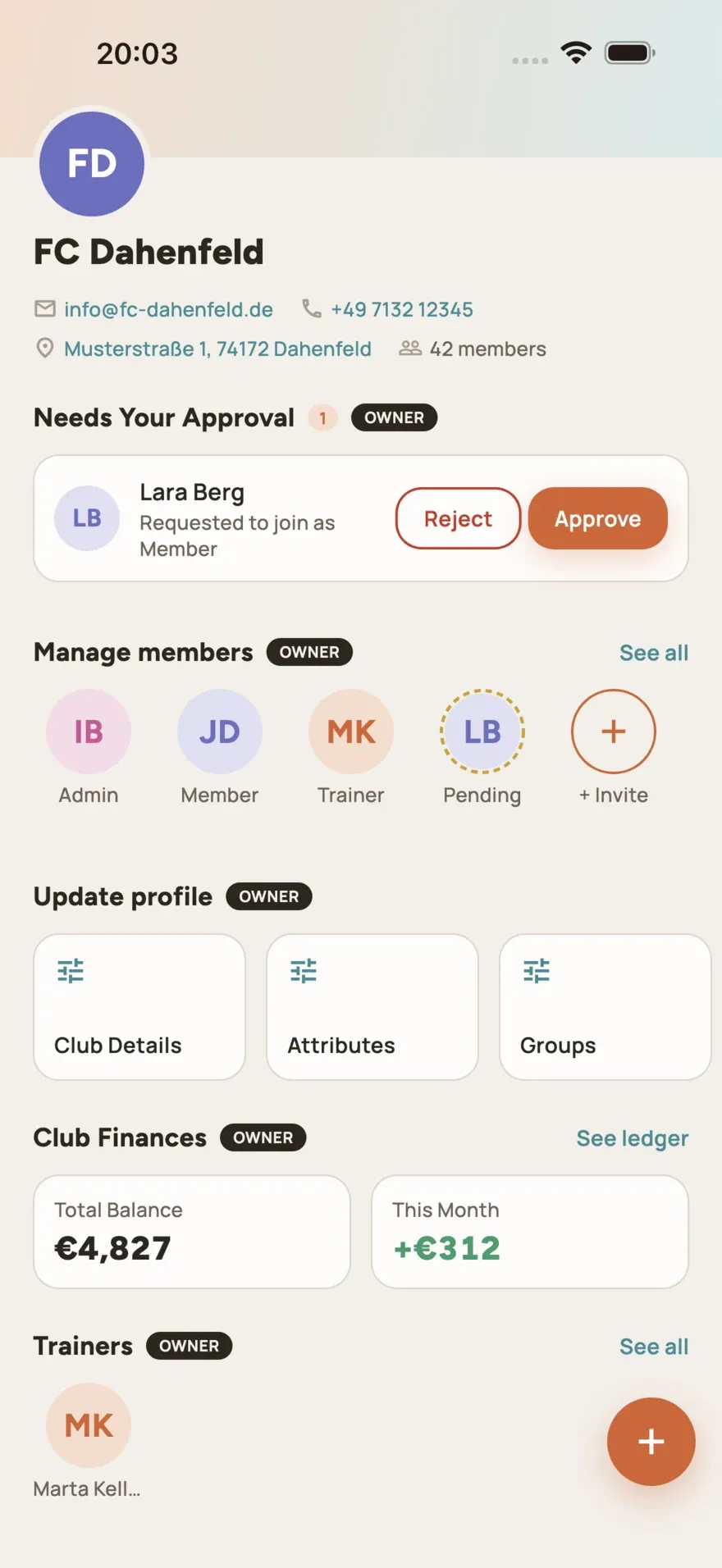
The approval queue
Every pending join request in one place on the club home screen. Approving is a single tap and takes effect at once; rejecting asks for confirmation first, because a rejected applicant cannot apply again.
A searchable member directory
The full roster, searchable as you type and filterable by role or by pending status. Tap anyone to open their detail, where role, groups and — for a child account — the linked parent all live.
Six roles, changed in one place
Owner, admin, staff, trainer, member and child member. A role decides what somebody sees and what they can post, and you can change or withdraw it whenever the job in the club changes.
Private groups, and who is in them
Only owners and admins can make a group private, add people to one, or move somebody between groups. A private group is invisible to everybody who is not in it.
The club ledger
Every transaction the club has recorded, grouped by date and filterable to income or expenses alone. Add, edit and delete entries with an amount, a category, a date and a note.
Six months at a glance
The balance, the period’s income against its expenses, and a six-month bar chart. All three are computed from the ledger on the server every time you open it, never kept in step by hand.
Every trainer at a glance
One screen for all your trainers: the groups each is assigned to with their times, sessions this month, and what is paid against what is still pending. Open any of them read-only.
Club analytics in three tabs
How the membership has grown and how it splits by role; which groups have no trainer or no schedule; how much is being posted and of what kind. Computed fresh each time you look.
The club’s own profile
Contact details, address, specialisation and free-text attributes. It is the first thing a new member sees, and it is yours to keep accurate.
Donations and sponsors
Publish a donation link and a list of sponsors with their tier and website. Both open in the browser after a confirmation naming the destination — the app itself never handles money.
Remove somebody, properly
Removing a member clears their trainer assignments and group memberships and ends their access at once, rather than waiting for them to sign in again. Posts they wrote stay — club history is a shared record.
Retire a group
Deleting a group unassigns every member and its trainer, removes its schedule, and tells each former member it has gone. The creator of a group can do it too, not only an owner.
6 features
For trainers
What you are coaching, when it is on, and what you have been paid for it. A trainer is assigned to a group by an owner or admin; from then on the group follows you around the app.
Your week, across every group
“My Week” collects the sessions of every group you are assigned to and lays them out in date order, so you see one list rather than checking each team in turn.
Create the group you coach
You do not have to wait for an admin to set a team up. Create the group, name it, give it its weekdays and times — and assign yourself or another trainer to it while you are there.
See who is in your group
Open a group you coach and you get its member list, so you know who you are expecting. You can add existing club members to it or take them out again as the squad changes.
Log what you earned
Record a session with a title, an amount, a date and whether it has been paid yet, against the group you coached. The picker only offers groups you are the assigned trainer of.
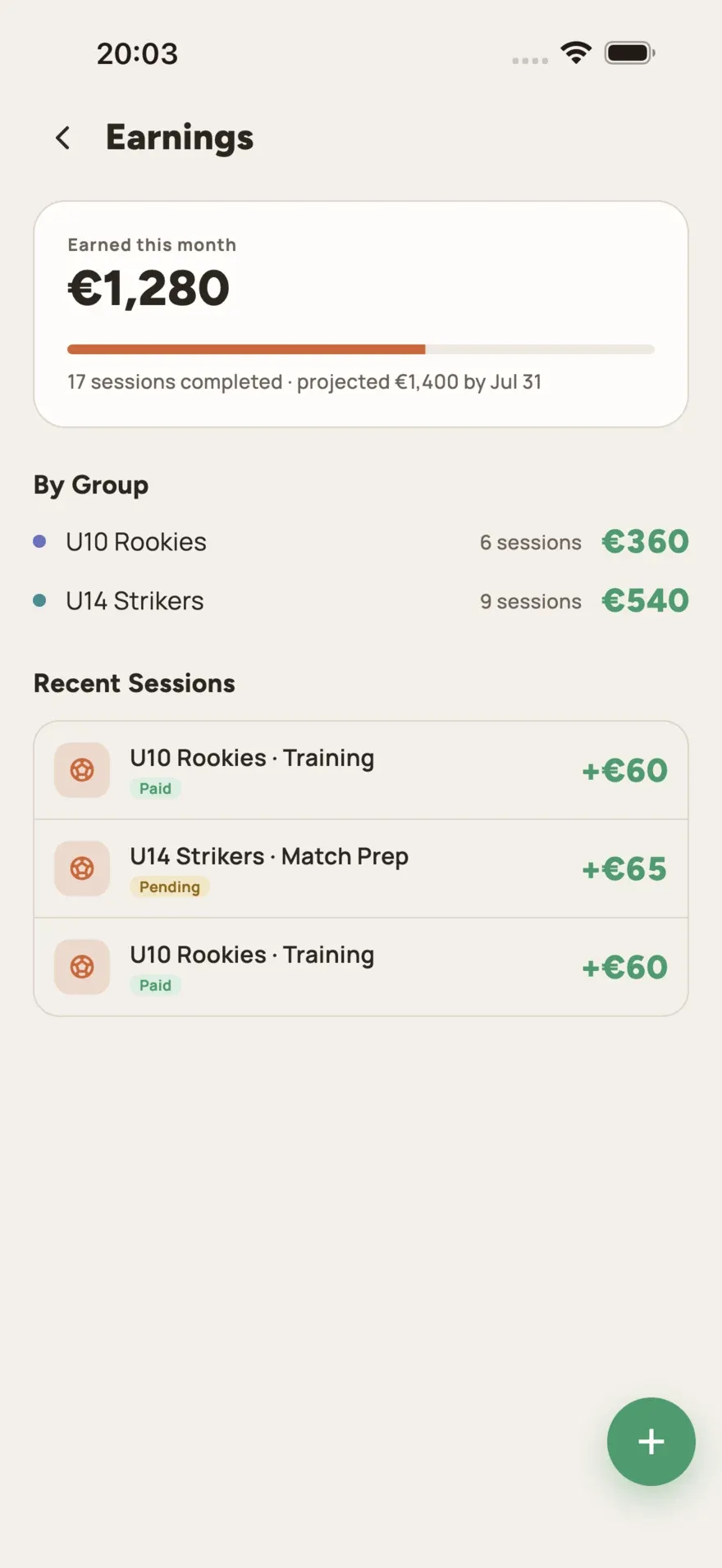
A monthly total against a projection
What you have earned this month, shown against what the month is projected to come to from your assigned schedules, plus a breakdown per group and your recent sessions.
Post the training entries
Training posts are yours to write — owners and admins cannot. Add a date and a two-option poll and you know who is turning up before you get to the pitch.
15 features
For members
Everyone in a club is a member, whatever else they are. This is the part of the app a person joins for: getting in, finding their team, knowing when it meets, and hearing what matters.
Join with a QR code
Point the app at your club’s QR code, check the name that comes back, and send a join request. No invite links, no shared password, nobody typing your details into a spreadsheet.
Find and join your team
Public groups are visible to the whole club, and you join or leave one yourself without asking anybody. The group’s creator is told either way.
What’s next, without asking
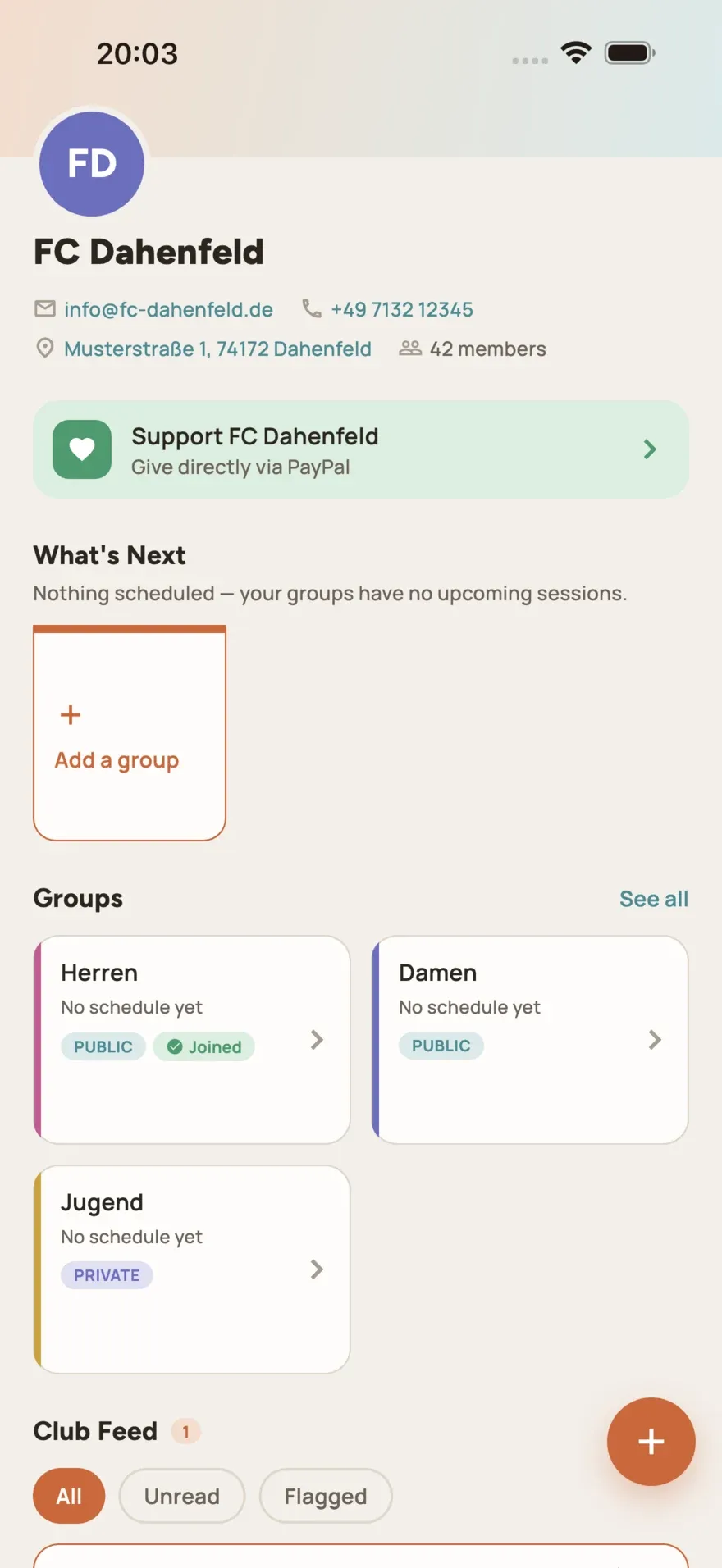
The sessions of every group you belong to, in date order, on your club home screen. If a schedule changes you are notified rather than left to notice.
Only what concerns you
Posts can be addressed to the whole club, to one group, to a role or to a single person. If a post is not for you, it is not in your feed — the club’s noise is not your problem.
Answer in one tap
Events, training and practice posts can carry a two-option poll. Tap your answer on the post and see the running count, instead of adding to a thread of forty replies.
Unread and flagged
Filter the feed down to what you have not read, or to what you flagged to come back to. Both are private to your own device — nobody in the club can see what you have read.
Push notifications
New posts arrive as a notification and open straight to that post when tapped, even from a cold start. They are off until you turn them on, and you can turn them off again.
German and English, light and dark
Every screen is fully translated into both languages, and both light and dark are designed rather than dimmed. All four combinations follow your device settings on their own.
Sign in with Face ID or a fingerprint
After your first sign-in with a password, the app can offer to use the biometrics your phone already has. It stays optional, and you can switch it off again in the settings.
Export or delete your data
Export everything the app holds about you — profile, memberships, the posts you wrote and the ones you answered — as a file. Deleting your account sits in the same place.
Leave a club yourself
Leaving is your decision, not an admin’s errand. You can end your own membership without anybody approving it, and without deleting your account or losing your other clubs.
Back your club
If your club has published a donation link or a list of sponsors, both appear on its page. Tapping one shows you where it is about to send you before it opens anything.
Child accounts
A club with youth teams is holding data about minors, and that deserves its own answer rather than a footnote. A child member is a real membership with a deliberately narrow surface: they can see their club and belong to their team, and they cannot broadcast to anybody.
A real membership, not a guest
A child member goes through the same join and approval flow as anyone else, belongs to groups, appears in the roster, and shows up in their team’s member list. They are part of the club, not a shadow of a parent’s account.
Linked to a parent
Every child account names another member of the same club as its parent, and an owner or admin has to pick that parent before the role can be saved. There is no unattached child membership.
Read-only by design
A child account cannot post anything — no announcements, no events, no training entries — and the compose button is not shown to them at all. They also cannot join a group on their own; a parent, owner or admin does that for them.